Work on the correct website
Open Websites and select the Network, Channel, or Show in the website hierarchy. Confirm the name in the editor header before making changes. A website’s inherited settings and available controls depend on its place in that hierarchy. A Channel can inherit its Network’s address or have a separately published address; an Owner controls that address choice.
Owners, Admins, and Editors can prepare supported website changes. Publishing is an Owner or Admin action, and commercial plan limits can also affect website availability. See Pricing for the current plan features.
Prepare and review a draft
- Use Content to configure homepage sections, such as the welcome banner, featured Shows, recent Episodes, and About content.
- Use Design for the theme and branding controls. Keep the Show or Network identity consistent with its artwork and description.
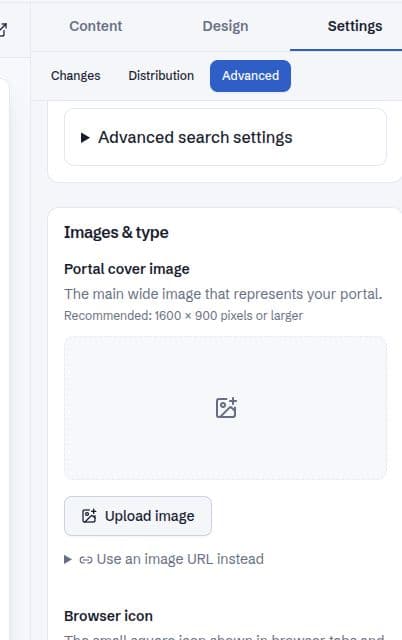
- Use Settings → Advanced for search and sharing text, cover imagery, the browser icon, and other advanced presentation settings.
- Switch between Desktop and Mobile above the preview. Use Refresh website preview if you need to reload the current draft.
- Open Settings → Changes and review the pending changes. Check the website address and any required hosting or domain setup.
- Choose Publish when the draft is ready, then open the public website and verify the result.
A draft preview is not the public website
Preview links provide access to an unpublished view and should be treated as private review links. Use the website’s public address when sharing the published site with listeners.
A saved field, a successful preview, and successful publication are separate steps. Check the public address after publishing, particularly when changing search text, artwork, or listening-app links.
If publication is unavailable
Confirm your role, the plan’s website features, and that there are pending changes to publish. A custom domain also needs the appropriate DNS and hosting connection; entering a domain name is not proof that the connection is ready.
Do not repeatedly publish an unchanged draft to fix a local preview problem. Refresh the preview, check the draft’s selected website, and ask a Network Owner or Admin to review access and address configuration when needed.