Select and review the files
- Open the Show’s bulk upload page and use Choose files or Choose folder.
- Review each proposed title, Episode number, and Season. Filename suggestions are a starting point, not a substitute for review.
- Use Batch controls to set defaults for the queued episodes.
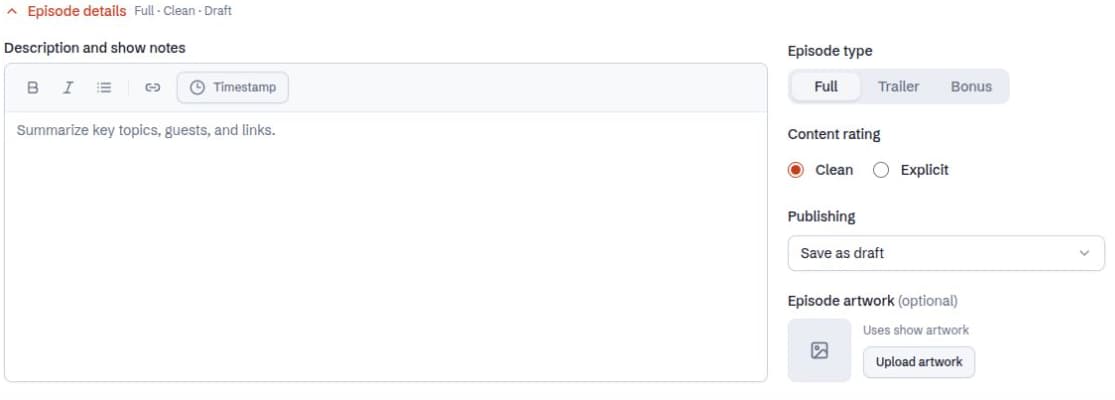
- Open a row’s Episode details to add Description and show notes, set Episode type and Content rating, choose Publishing, and optionally upload artwork.
- Check every scheduled episode’s date and time. Rows can use different publishing modes.
- Start the batch with the Upload button, then review each row’s final status.
What each episode needs
The title, numbering, episode type, rating, and release date follow the same rules as the single-episode form. Bulk upload also measures the audio duration instead of saving every duration as zero.
Bulk is a file-based workflow: every row begins with an audio file. To create a draft before you have any audio, use the single-episode form instead. Files must fit the 500 MB limit and the Network’s available storage and episode allowances.
Example: two different releases
Fictional example: a Show has a Clean, Full episode scheduled for next week and an Explicit, Bonus episode ready for immediate release. Set the common Season in Batch controls, then open each row to choose its type, rating, notes, and Publishing setting. The two rows do not need to share a release time.
Recover from an interruption
A failed row does not mean every episode failed. Review completed rows before retrying, and use the failed item’s retry action rather than adding the same file again. Retried creation keeps the episode metadata and can reuse audio that has already uploaded.
Keep the original files until the batch is complete. Queue recovery depends on this browser’s stored queue and local file data; clearing browser storage or using another device can remove that recovery state. Avoid changing a scheduled time to one that will pass before the upload finishes.