Before you start
Choose the correct Network and Show first. Your role determines whether you can publish: an Editor can prepare a draft, while an Owner or Admin can handle publication. Plan and storage limits still apply.
- Use an episode title of 120 characters or fewer.
- Season is a whole number starting at 1. Episode number is a whole number starting at 0.
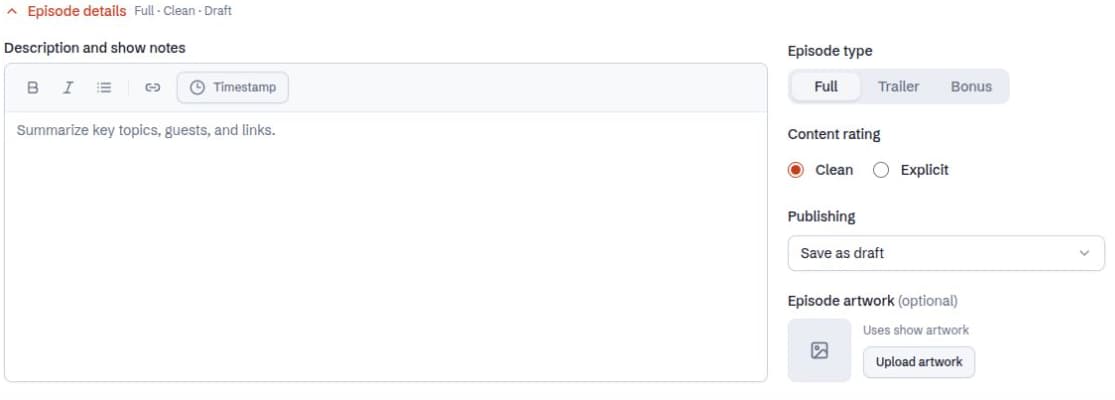
- Choose Full, Trailer, or Bonus and set the content rating to Clean or Explicit.
- Audio files must be no larger than 500 MB. Artwork and show notes are optional.
Create the episode
- Open Shows, select the Show, and start a new episode.
- Enter Episode title, Season, and Episode number in Episode details. Add Description and show notes if needed.
- Choose the Episode type and Content rating that describe this release.
- Add the episode audio and wait for the upload to finish. If duration cannot be read, remove the file and try a supported audio file again.
- Optionally use Upload episode artwork and adjust its crop.
- Use Save draft to continue later, or choose Publish immediately or Schedule for later under Publishing. For a schedule, choose a future Publish date and time in your local time zone, then submit the form.
Understand the publishing choices
A draft is preparation work. An immediate release becomes public when creation succeeds. A scheduled release waits for its release time. Saving a draft is useful when you still need to review notes, artwork, or the audio file.
Full is the normal episode type. Trailer identifies a promotional introduction, and Bonus identifies an additional release. These are saved with the episode; they are not just visual choices in the form.
If the form will not submit
Check the title, whole-number fields, completed audio upload, and schedule first. A time that has already passed is not a valid scheduled release. If you can only save a draft, ask an Owner or Admin to review and publish it.
Do not assume an audio upload alone means the episode was created. Wait for the creation result and check the Show’s episode list before repeating a submission.